How to change an employee's shift
Always change the shift — never the timetable. A shift already contains its timetables: each weekday of a shift points at a timetable (the working hours for that day). When you give an employee a different shift, the right working hours for every day come with it.
Which one do I use?
| Scenario | Where | Affects |
|---|---|---|
| A. Set the employee's normal (base) shift | Attendance → Shift Assignments | Every day in the date range you choose — by employee, group or department |
| B. The whole of this month is different (e.g. day → night) | Monthly Work Card → ⋮ → Change shift / timetable | That employee, that month only |
| C. Only part of the month is different (e.g. first half morning, second half night) | Attendance → Employee Calendar | Only the days you pick |
:::info What wins A shift given to one employee always beats the shift of their group. A temp day set in the Employee Calendar beats both. Remove the temp day or the assignment and the employee goes back to their base shift. :::
A. Set the normal (base) shift
Use this for the shift an employee normally works — for example everyone in the Production group works
DAY-MONFRI, or a new joiner starts on NIGHT-6D.
-
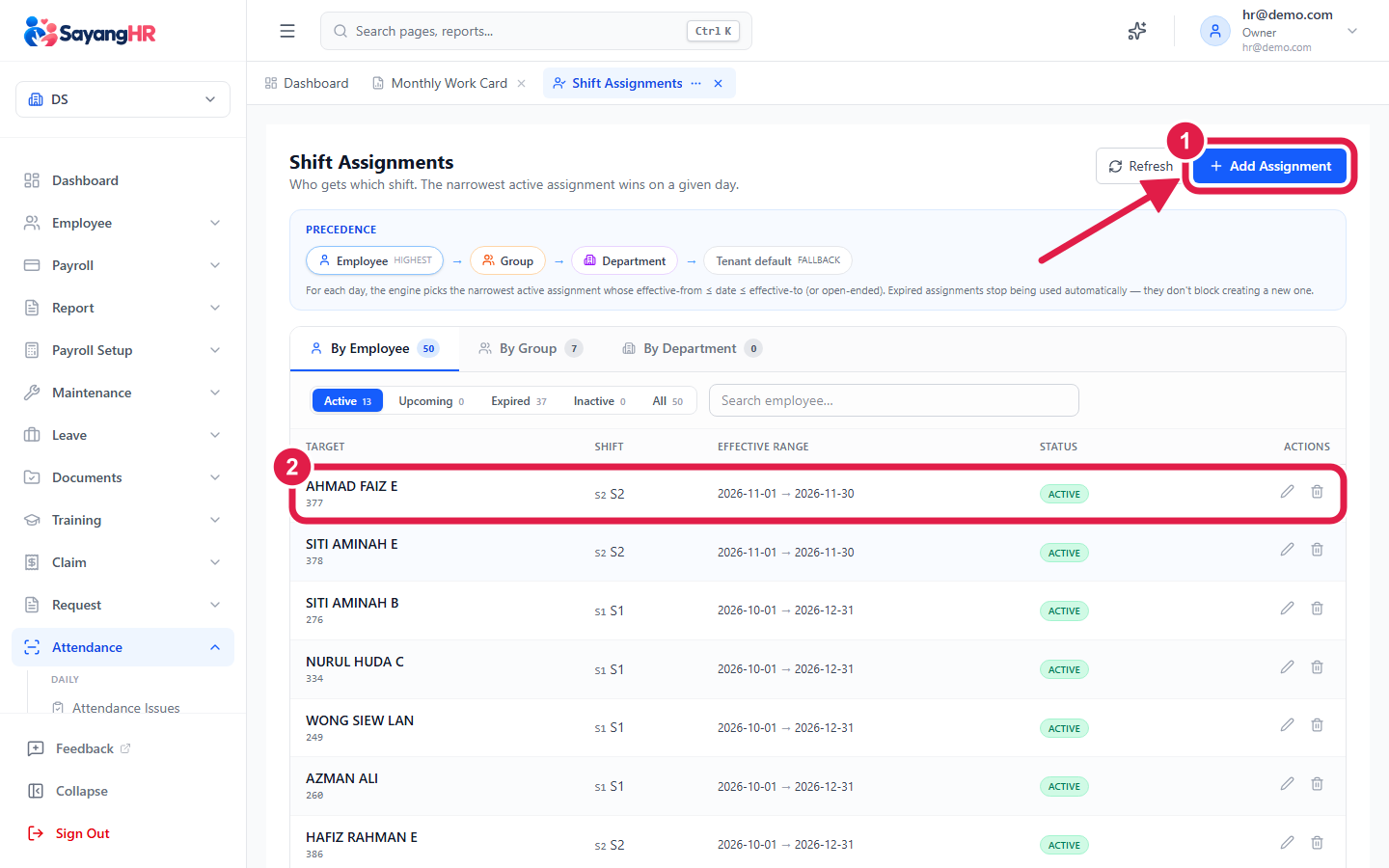
Go to Attendance → Shift Assignments (in the Setup part of the Attendance menu).
-
Click Add Assignment.
-
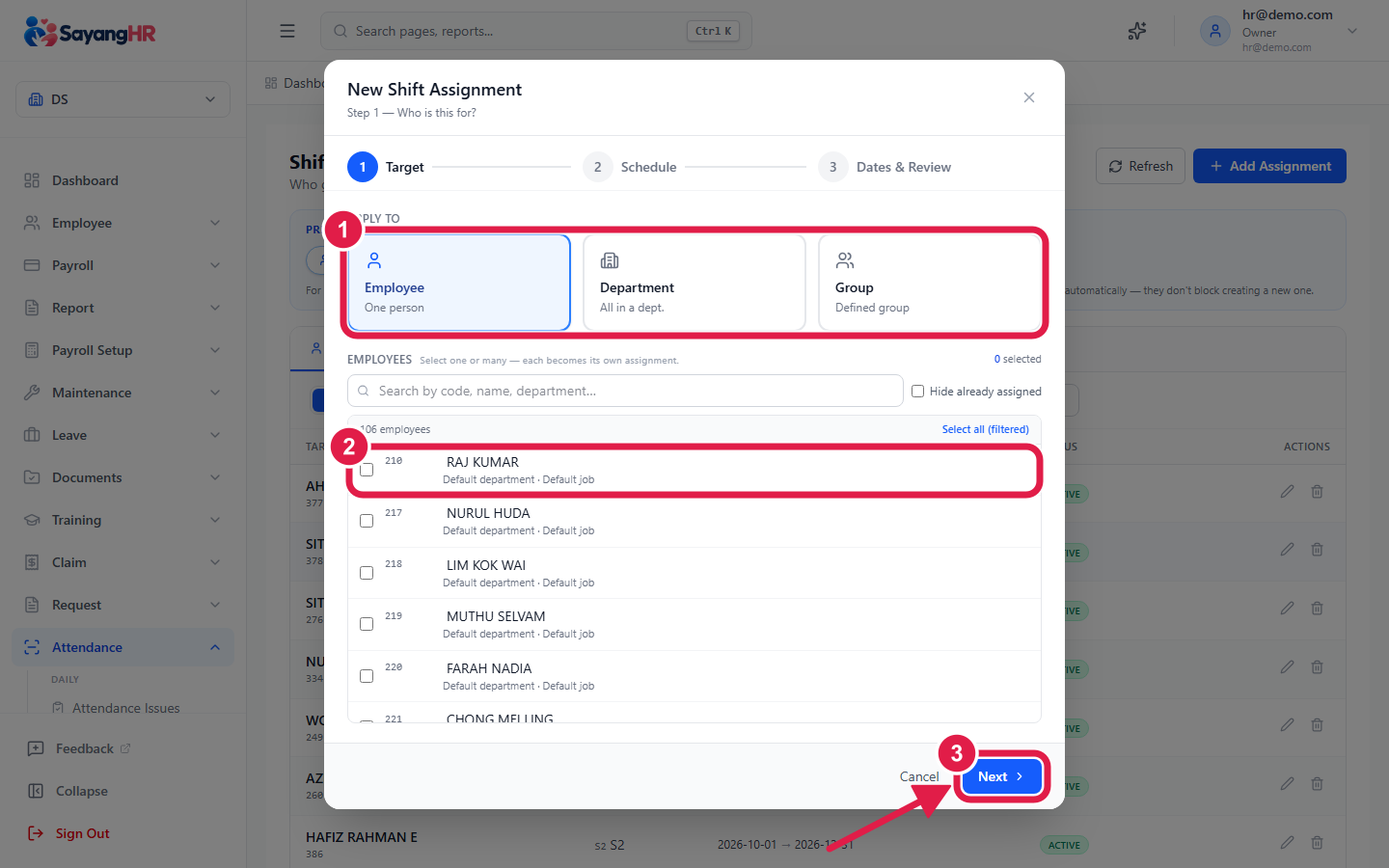
Choose who it is for:
- Employee — one person, e.g. Ahmad Faiz (E001), or
- Group or Department — everyone in it.
-
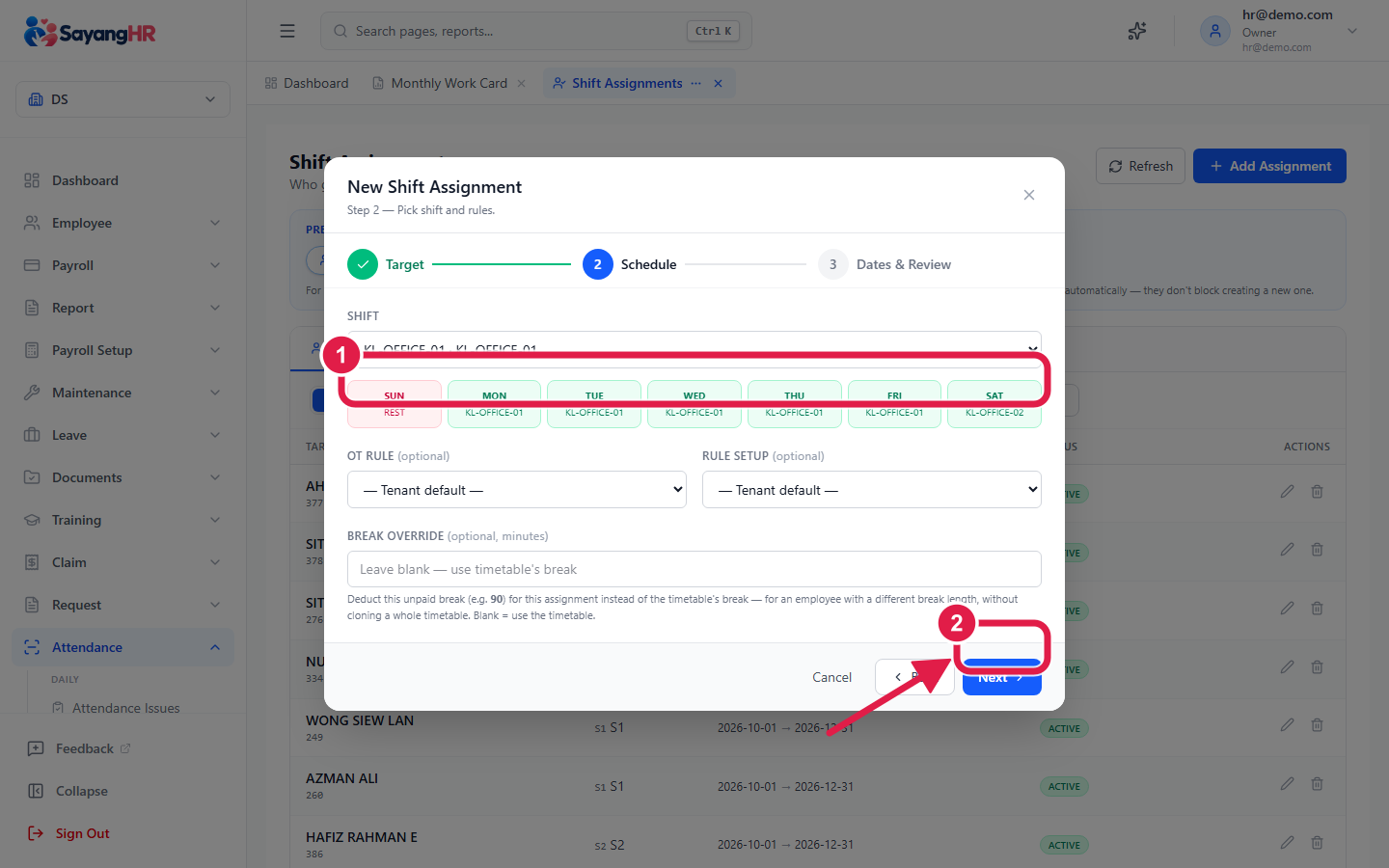
Pick the Shift.
-
Set the Effective from date. Leave Effective to empty if it has no end date, or set an end date if it is only for a period.
-
Save.
Give the shift to the group whenever you can. Then you only give a shift to a single employee when they really are different from their group.
B. Change the shift for the whole month
Example: Ahmad Faiz (E001) moves from the day shift to the night shift for all of this month.
-
Open Attendance → Monthly Work Card and choose the month.
-
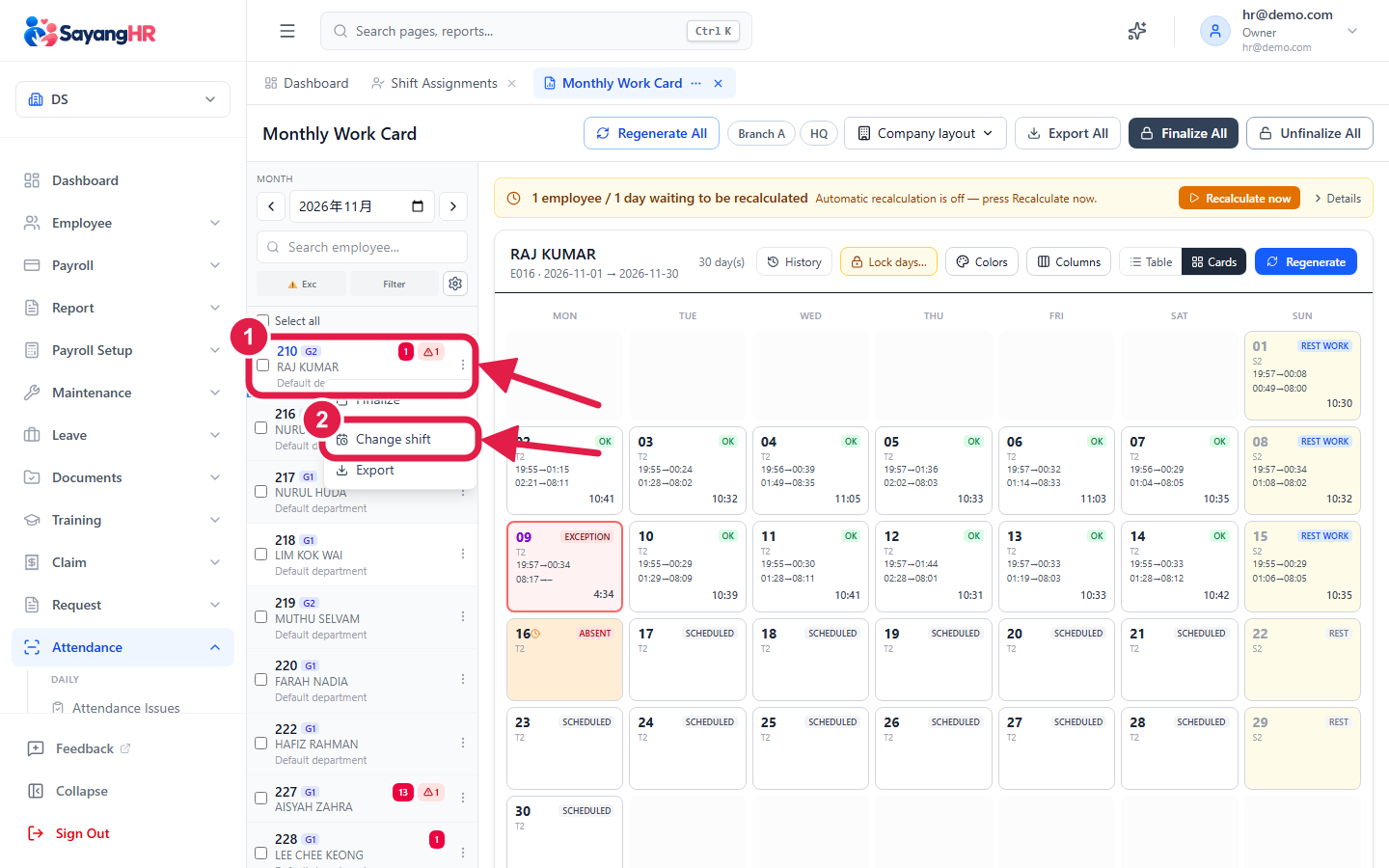
Find the employee and click the ⋮ (three dots) next to their name.
-
Click Change shift / timetable.
-
Under Shift, pick the new shift (e.g.
NIGHT-6D). Leave Force a timetable empty — the shift already knows the working hours for each day. -
Click Apply & preview.
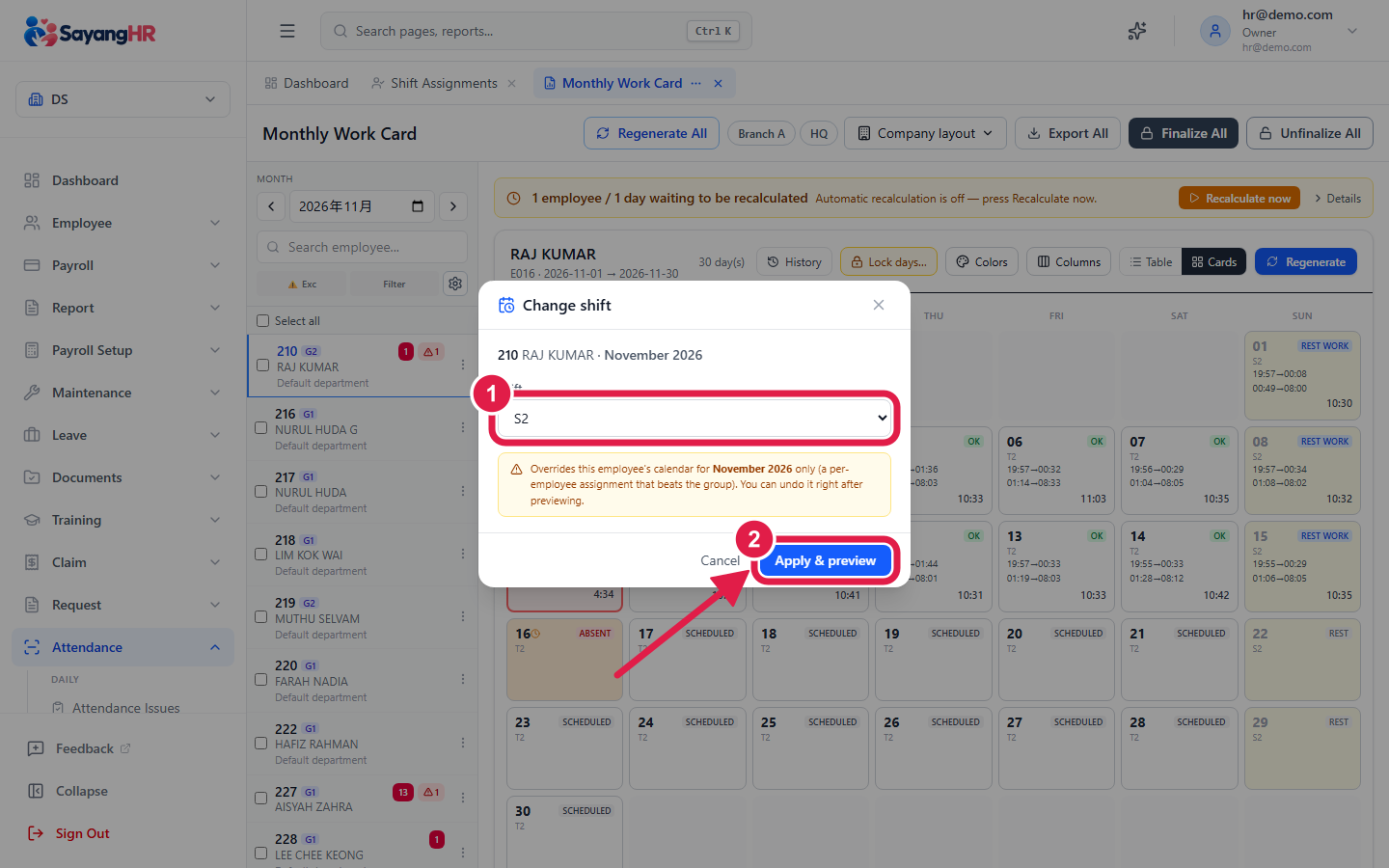
-
The work card is recalculated with the new shift. Check the days, then use the banner at the top:
- Keep — the change stays.
- Undo — the change is removed and the card goes back to how it was.

This only affects that employee for that month. Behind the scenes it is a shift assignment for that one employee, so it beats their group's shift. Next month they are back on their base shift.
C. Change the shift for part of the month
Example: Ahmad Faiz (E001) works mornings from the 1st to the 15th, then nights from the 16th to the end of the month. Or he only needs a few scattered days changed.
-
Go to Attendance → Employee Calendar and pick the employee and month.
Each day shows its shift and timetable in the shift's colour, so you can see the whole month at a glance. Rest days and public holidays are marked, and days you changed show OVR.
-
Choose the tool you need:
Set a range of days to a shift (Assign shift range)
Use this for a continuous block of days, e.g. the 16th to the 31st.
- Click ASSIGN SHIFT RANGE (on a phone: Assign range).
- Click the first day and the last day of the range.
- Pick the shift.
- Click Assign range (on a phone: Assign).
Every day from the first to the last day now uses that shift. To undo it, select the same days and click Remove assign.
Change single days (Add temp)
Use this for individual days that are not next to each other, e.g. the 3rd, 9th and 22nd.
- Click ADD TEMP (on a phone: Add temp).
- Click each day you want to change — they do not need to be next to each other.
- Choose what those days become:
- tick Rest day, or
- pick the working hours for those days from the list.
- Click Apply.
The changed days show OVR.
Go back to the base shift (Remove temp)
- Click REMOVE TEMP (on a phone: Remove temp).
- Click the days marked OVR, then click Clear — or click Clear all to remove every temp day in the month.

Those days go back to the employee's base shift.
After you change a shift
- Scenario B regenerates the work card for you.
- After Scenario A or C, open the Monthly Work Card for that month, select the employee and click Regenerate so worked hours, late and OT are calculated with the new shift.